
BulkImport
BulkImport efficiently copies a large number of rows into a PostgreSQL database table.
This function creates an Import object in its execution path. Use the SetValue function to add the rows that you want to insert. See the example below.
Properties
Section titled “Properties”Connection string
Section titled “Connection string”The connection string that specifies how to connect to the database.
Specify columns at runtime
Section titled “Specify columns at runtime”Select this property if the destination table and the columns to import into are specified at runtime instead of being selected at design time.
When this property is not selected, the destination table and its columns are selected at design time using the Table property, and the Import object’s Write property is a record with a field for each of the selected columns.
When this property is selected, the Table property is replaced by the Table name and Column names properties, which are evaluated at runtime. In this case the Import object’s Write property is a list of text values, where each value in the list corresponds to the column at the same position in the Column names list.
Timeout
Section titled “Timeout”The timeout value in seconds. 0 indicates the bulk copy operation will wait indefinitely.
The name of the destination table. This property is only shown when Specify columns at runtime is not selected.
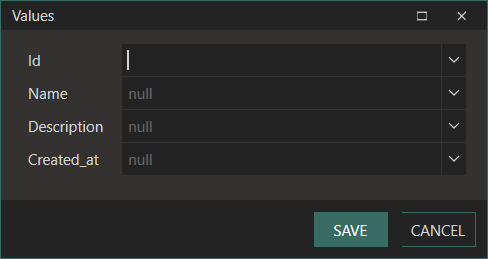
Click on the … icon to open the Editor.
Connection string
The connection string that specifies how to connect to the database.
Table
Select the relevant table to copy to.
Columns
Lists the columns in the selected table.
Table name
Section titled “Table name”The name of the destination table. This property is required and is only shown when Specify columns at runtime is selected.
Column names
Section titled “Column names”The names of the destination table columns to import into, in the order in which their values are written. This property is required and is only shown when Specify columns at runtime is selected.
The order of the names in this list determines the order of the values that must be assigned to the Import object’s Write property.
Example
Section titled “Example”Suppose you have a CSV file with many records to load into a database table. Using the BulkImport function, as shown below, runs significantly faster than using the more generic ExecuteSQL function.
Steps:
-
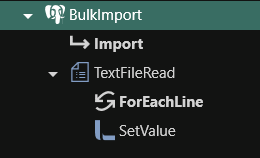
From the PostgreSQL plugin, drag the BulkImport function onto the design canvas.
-
Set the BulkImport properties (see above for details).
-
From the File plugin, drag the TextFileRead function onto the design canvas (nested below your BulkImport function).
-
Set the TextFileRead properties to read each row from the source file for the destination database, defining the fields to assist with target mapping.
-
Drag the SetValue function from the Linx plugin onto the design canvas, nested below the TextFileRead function.
-
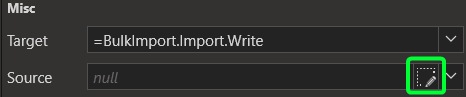
Set the Target property of the SetValue function to
BulkImport.Import.Write.
-
Then click the Set Fields editor button next to the Source property to assign the values to the table’s columns.