

Connection Editor
The connection string specifies the configuration values required to connect to the FTP server.
Accessing the Connection Editor
Section titled “Accessing the Connection Editor”To access the Connection Editor, click on the Connection Editor icon or dropdown list item.

Providing Connection Settings
Section titled “Providing Connection Settings”Provide the relevant settings to make your connection:
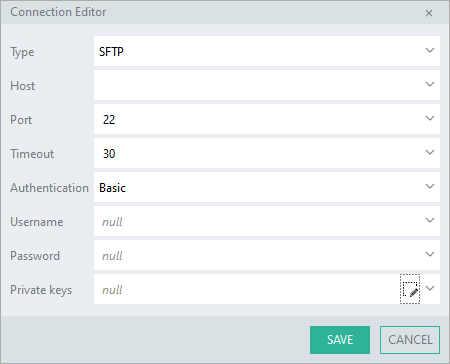
Connection Settings
Section titled “Connection Settings”The type of FTP connection to create. Possible values are FTP (default), FTPS or SFTP.
Note: FTPS uses explicit FTPS except where port 990 is specified when implicit FTPS is used.
The address of the FTP-site.
The port number to connect to.
Timeout
Section titled “Timeout”Period in seconds to establish a connection.
Authentication
Section titled “Authentication”The authentication method to use (Anonymous or Basic).
Username
Section titled “Username”The username to use to authenticate. (When Authentication is “Basic”.)
Password
Section titled “Password”The password to use to authenticate. (When Authentication is “Basic”.)
Private Keys
Section titled “Private Keys”The private keys to use to authenticate your connection. (When Type is “SFTP” and Authentication is “Basic”.)
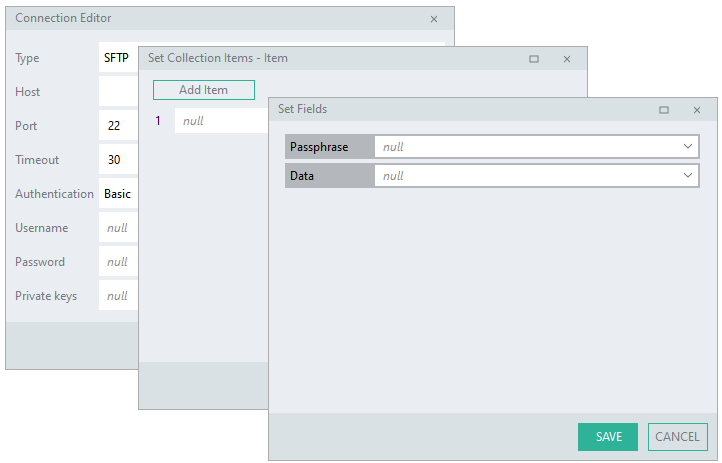
Public/Private Key Pair Creation
Section titled “Public/Private Key Pair Creation”The private key data is associated with a public key, in other words it is part of a public/private key pair.
To create a public/private key pair, you would generate a pair of public and private keys from your own computer using third party key generation tools like OpenSSH, PuTTYgen, etc. (When using PuTTYgen, export the key in the OpenSSH format). Before connecting to your server, your public key must first be uploaded and registered on the SFTP server.
Private Key Requirements
Section titled “Private Key Requirements”A Private key is a collection of private key data and an optional passphrase (i.e. if a passphrase was set up for the private key when it was generated, it would be required here).