

RESTHost - Working with inputs
When a request is received by Linx, input data is passed in to the operation via:
- Input Parameters
- Path
- Query
- Headers and Cookies
- Request Body
- Simple
- Object
- File
These inputs are deserialized into the appropriate Type to use when building custom logic.
Like any other Type, the inputs from a request are accessible for selection in the Properties of A Function, Service or Event.
The following sections describe how to handle each type of request input and the typical usage of each.
Input Parameters
Section titled “Input Parameters ”Input parameters are divided into the following types based on the parameter location:
- Path
- Query
- Header and Cookie
Path parameters are variable parts of the request URL.
/users/{id}
These are typically used to point to a specific resource such as a user’s id in the example above.
There can also be multiple path parameters such as:
/users/{id}/task/{taskID}
When the API Definition specifies that there are path parameters, these will be deserialized into the appropriate type to use in the drop-down selectors in the Designer.
For example, the below method take’s in an id value passed in with the request URL.
paths: /resource/{id}: get: summary: Retrieve the details of specific resource. description: Retrieve the details of specific resource. operationId: GetSpecificResource parameters: - name: id in: path description: id required: true schema: type: string
paths: /resource/{id}: get: summary: Retrieve the details of specific resource. description: Retrieve the details of specific resource. operationId: GetSpecificResource parameters: - name: id in: path description: id required: true schema: type: stringWhen a request is made, the URL will look like the below:
https://linxdemo.net:8080/resource/27TAHSS737DCHJ
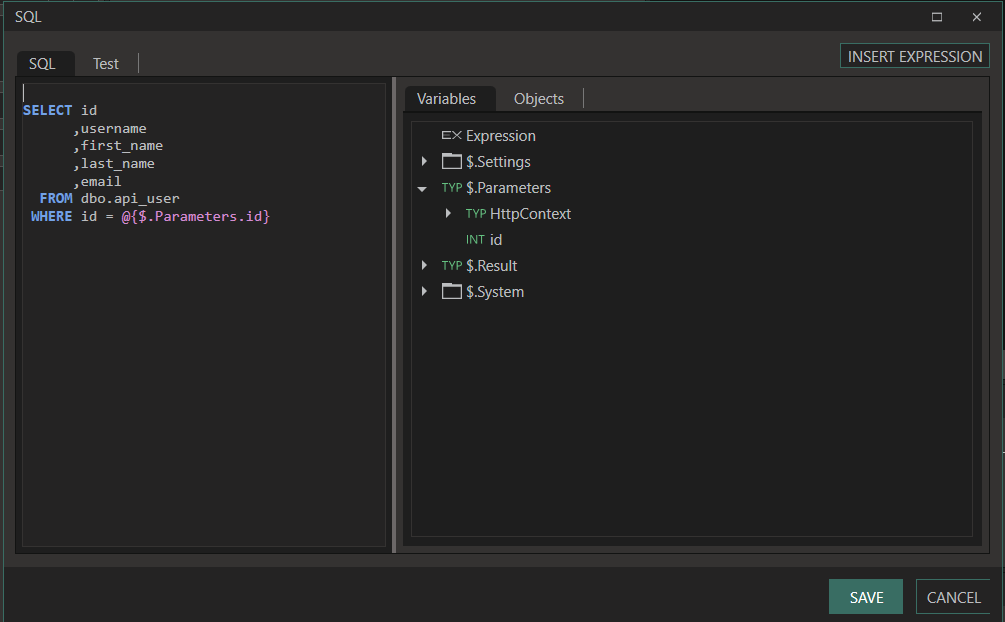
This id parameter is then accessible from the $.Parameters.id of the operation.
Linx Designer View:
In the below example, the path parameter id is used to query a specific resource from the database using an ExecuteSQL function:
Query
Section titled “Query ”Query parameters are the most common of parameter types. These are passed in as part of the query string which appears at the end of the request URL.
/users?role=admin&user=Mark
When the API definition specifies that there are query parameters, these will be deserialized into the appropriate type and will be accessible within the operation to build custom logic with.
For example, the below operation takes in an email and name parameter values passed in the query string of the request URL.
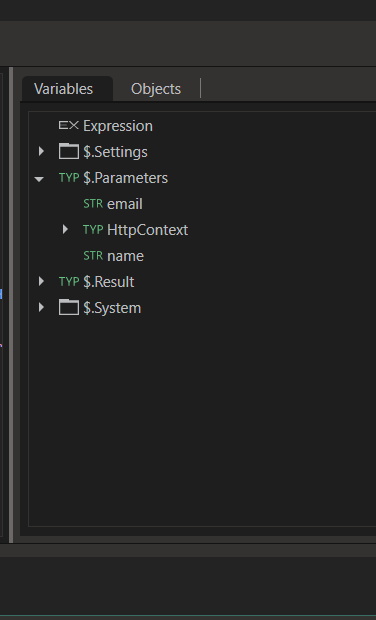
/users: get: summary: List users description: List users operationId: QueryUsers parameters: - name: name in: query description: User full name schema: type: string - name: email in: query description: User email address schema: type: stringThe name and email parameters are then accessible from the $.Parameters of the operation which can be used to do custom processing.
Linx Designer View:
In the below example, the query parameter name is used to query matching resources from the database using an ExecuteSQL function:
Header and Cookies
Section titled “Header and Cookies ”Header and Cookie parameters can also be used, although typically these would rather be used for authentication purposes and any parameters passed in would be with the Query or Path.
If you explicitly state these objects in the API Definition then they will be available in the $.Parameters of the operation.
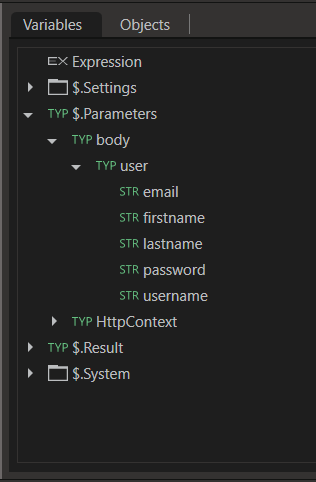
If you would like to access other header values, then you will need to build custom logic to extract the desired values.
Request Body
Section titled “Request Body ”The request body is defined by the API definition; this can either be simple types such as STR, INT, LST or objects which contain nested types and other objects.
Simple Type
Section titled “Simple Type ”The request body of an operation can contain a single type or field such as a STR type, typically however, you would use a object to hold more information for the request body.
To use a simple type as the request body, add the request body definition to the path in the API Definition like below:
requestBody: content: text/plain: schema: type: stringThis value will be available in the operation’s $.Parameters.body to use in the operation.
Object
Section titled “Object ”If you have described your request body as an object in the API Definition, the values will be parsed from the request into a Type. This Type and its values will be accessible in the `$.Parameters.body to use in the operation.
In the below example, the /users endpoint receives a user object consisting of multiple fields as the request body.
/users: post: operationId: CreateUser requestBody: content: application/json: schema: $ref: '#/components/schemas/NewUser' description: Details of the new user to register required: true... schemas: NewUser: type: object properties: username: type: string email: type: string password: type: string format: password firstname: type: string lastname: type: string required: - username email password firstname lastnameThese values are then accessible in the operation to build custom logic with.
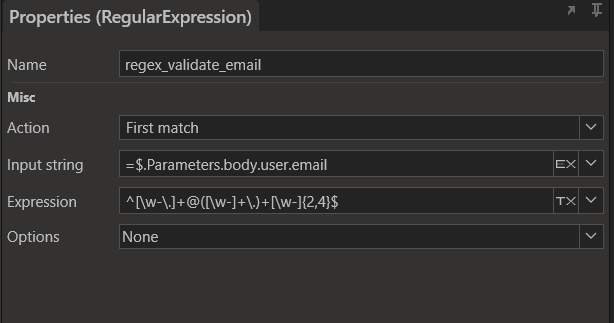
Linx Designer View:
In the below example, the input email field of the User submitted as the request body is validated using a RegularExpression function.
File Object
Section titled “File Object ”In order to recieve files in a binary format, you must described your request body as a binary object in the API Definition, the values will be parsed from the request into a LST type. This LST type and its values will be accessible in the $.Parameters.body to use in the operation.
In the below example, the /users endpoint receives a binary content request body containing the contents of a file.
/users: put: summary: send file description: Upload profile picture operationId: UploadPhoto requestBody: content: application/octet-stream: # Can be image/png, image/svg, image/gif, etc. schema: type: string format: binary required: trueIn order to write the contents of the file out to a drive, you must use the BinaryFileWrite function.
Other guides for hosting a REST API
Section titled “Other guides for hosting a REST API ”- RESTHost Overview Guide
- Get Started - Hello World
- Before and After operation events
- Handling responses
- Securing your API
- Deploying and common issues
- Generating API documentation
- Sample solution: CRUD and file operations
Sample
Section titled “Sample ”View our sample solution on GitHub.