

Expression Editor
Quick Start
Section titled “Quick Start”What is the Expression Editor?
Section titled “What is the Expression Editor?”The Expression Editor is available in the dropdown of all properties that accept expressions.
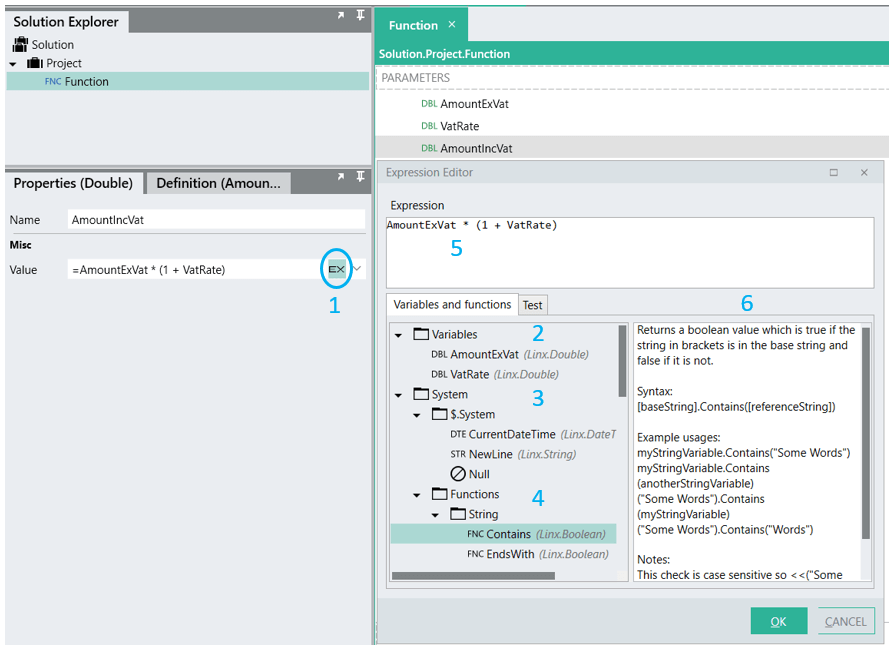
The Expression Editor Interface
- Click to open the Expression Editor
- System variables that are always available to include in an expression
- Functions that are available to include in an expression
- Variables that are in scope, and available to include in an expression
- The expression
- Help on a selected function. (To view help content, click on the relevant function in the drop-down list)
Layout of the Expression Editor
Section titled “Layout of the Expression Editor”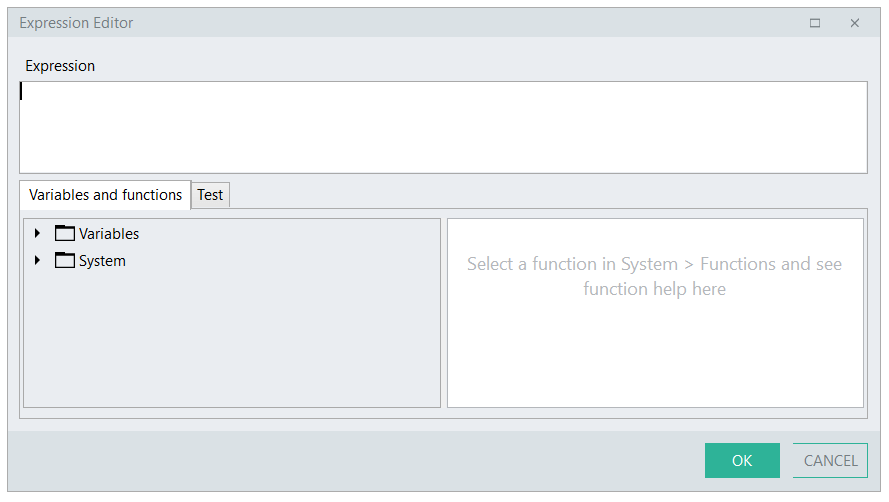
Expression Editor Layout
The Expression Editor is composed of the following:
Expression area
Section titled “Expression area”Enter an expression or select relevant variables and functions from the available lists to build up an expression.
Variables and Functions
Section titled “Variables and Functions”Variables folder
Section titled “Variables folder”There are 2 categories of variables available to include in an expression:
- In-scope variables: Those variables that you have already created upstream within the same function for which you are creating an expression.
- Those variables you have already created as Settings.
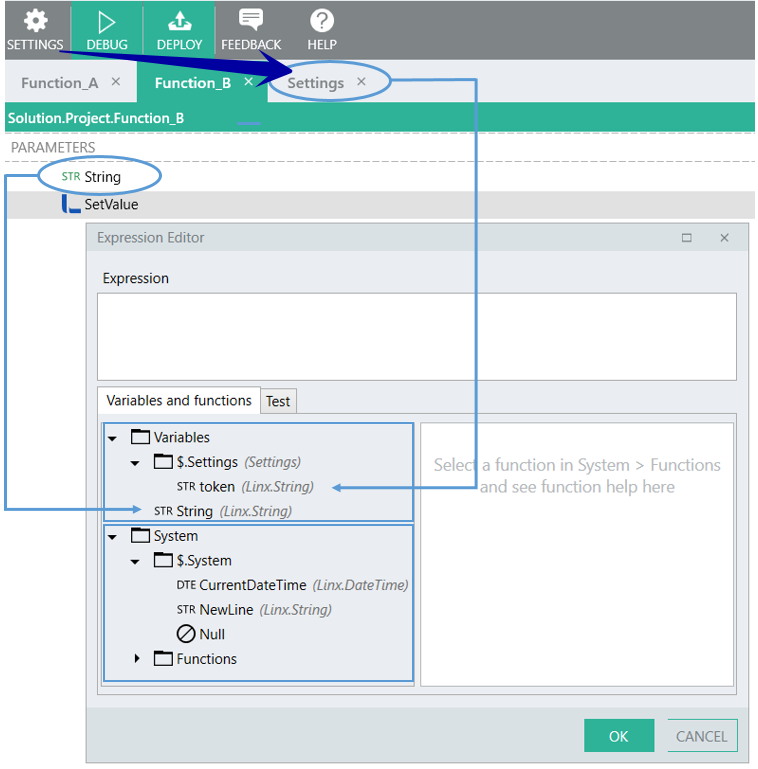
Expression Editor Variables
System folder
Section titled “System folder”The System folder includes system properties and functions.
- System properties
CurrentDateTimeNewLineNull
- Functions
Function Help
Section titled “Function Help”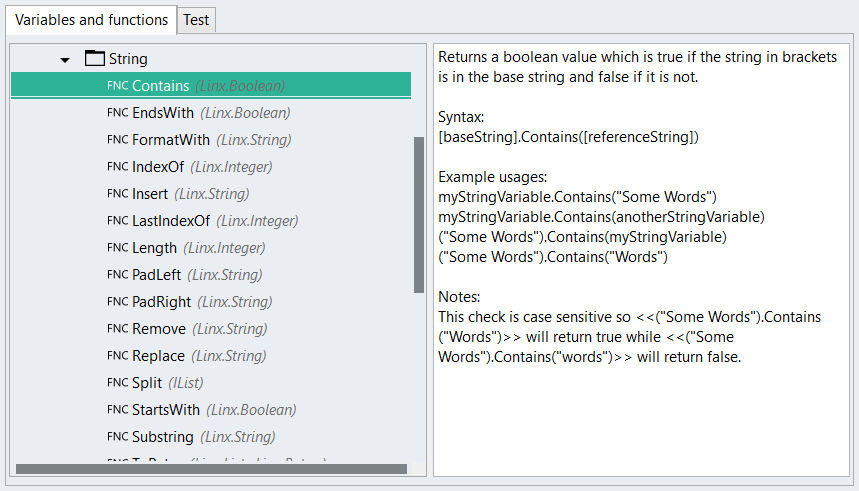
Function Help
To view help for a specific function, click on it where it is listed. The Help for the selected function is displayed in the help section.
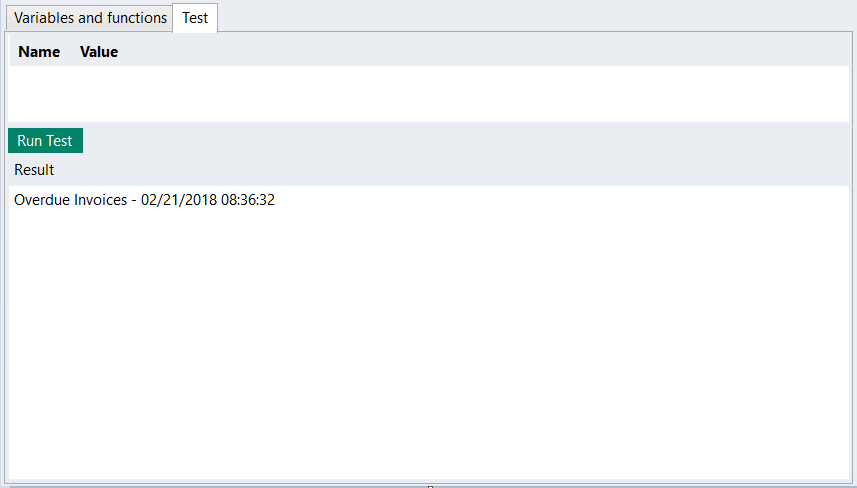
Variables and Functions Test
To test an expression for correct structure and syntax:
- Click on the Test tab
- Click the Run Test button
- The result of the test is displayed
A typical error message is: “Expression contains invalid syntax.”
Note: When testing an expression, usually relevant input has to be provided by the user. If the expression references a result from a function above, a value needs to be provided that will substitute the result in the expression. The test will be executed with that value. If my expression is Integer1 + Integer2, then the user will be asked to provide two integers in the test tab for the test.
Working with Expressions
Section titled “Working with Expressions”Linx uses C# expressions to evaluate values at run time.
Concept
Section titled “Concept”Excel uses expressions in cells. These expressions evaluate to a single value visible in the cell. In a similar fashion, Linx uses expressions when assigning values to properties. Linx expressions are evaluated at run time. Excel expressions use VBA syntax. Linx expressions use C# syntax. Linx expressions in property windows are preceded by a ”=”.
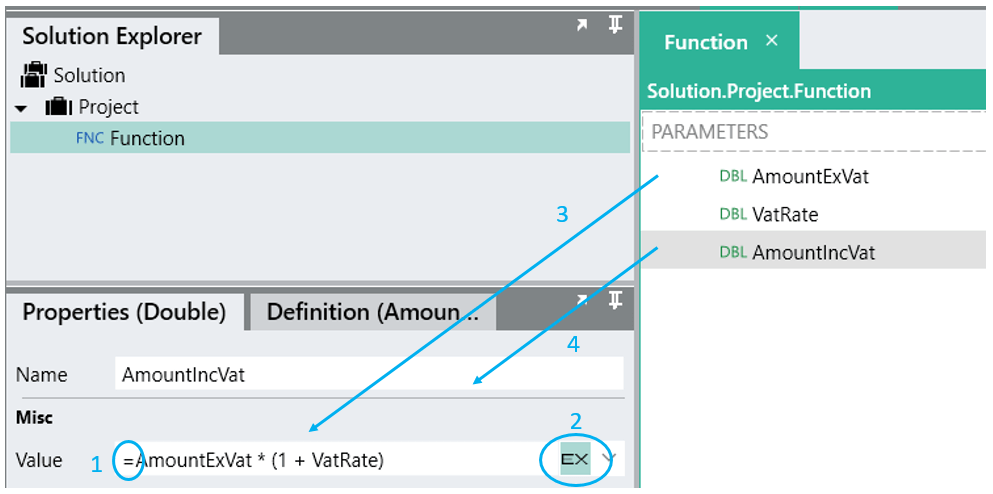
Simple Expression
=indicates that this is an expression- Click here to open the Expression Editor
- Variables available to include in the expression
- Variable that is being configured
Definition
Section titled “Definition”An expression is a series of operands and 0 or more operators that evaluates to a single value.
Operand
Section titled “Operand”Operands can be values, names, or functions.
- Values are numbers or strings e.g.
123,"abc". Strings are enclosed in double quotes. - Names refer to variables available in the scope of the expression e.g.
amount + 1will add1to a variable calledamountand return the result. Properties of variables are referred to using dot notation, e.g.Person.Age + 1will add1toPerson.Ageand return the result. - Functions are operations that can be performed on another operand e.g.
Person.Birthdate.ToString("yyyy-MM-dd")will returnPerson.Birthdateas a string formatted to look like"2016-12-31". Functions can be strung together e.g." 123,45 ".Trim().Replace(",",".")will return123.45.
Operators
Section titled “Operators”| Operator | Description |
|---|---|
| + | Add, Concatenate |
| - | Subtract |
| * | Multiply |
| / | Divide |
| < | Less than |
| <= | Less than or equal |
| > | Greater than |
| >= | Greater than or equal |
| == | Equal |
| != | Not Equal |
| && | And |
| || | Or |
For a full list of C# operators, go here. Linx does not support all the operators.
Things You Can Do
Section titled “Things You Can Do”String Concatenation
Section titled “String Concatenation”Strings are concatenated using +, e.g. "ab" + "c" evaluates to "abc". Build a CSV line with an expression like Person.Name + "," + Person.Surname + $.System.NewLine.
When strings are mixed with numbers, the numbers are added until the first string is encountered. Thereafter, operands are concatenated, e.g.
"1" + 2 + 3 + 4 will evaluate to "1234".
1 + 2 + "3" + 4 will evaluate to "334".
String Manipulation
Section titled “String Manipulation”Use functions like SubString, Trim, ToUpper, Split, etc. to work with string variables, e.g. TextFileRead1.FileContents.Replace("John", "Peter") will replace all instances of "John" in the FileContents variable with "Peter".
String Formatting
Section titled “String Formatting”Use FormatWith to create a string from several different inputs. The above CSV sample can be built as "{0},{1}{2}".FormatWith(Person.Name, Person.Surname, $.System.NewLine).
The numbers inside curly braces refer to the index of the parameter in the FormatWith part. For larger string formatting jobs, rather use a templating function like RazorTemplateTransform.
Calculations
Section titled “Calculations”e.g. AmountExVat * (1 + VatRate)
Date Operations
Section titled “Date Operations”Format a date: Person.Birthdate.ToString("yyyy-MM-dd")
Return the month: Person.Birthdate.Month
Boolean Expressions
Section titled “Boolean Expressions”In properties where true or false are expected, the expression must return a boolean value, e.g.
Person.Name == "Mary" (name is Mary)
Person.Age < 10 && Amount > 500 (person is younger than 10 and amount is greater than 500)
Functions
Section titled “Functions”Functions in an expression are operations that can be performed on data. Different functions apply to different types of data.
Go here for a list of functions.