# SQL Editor
The **SQL Editor** can be used to write SQL statements.
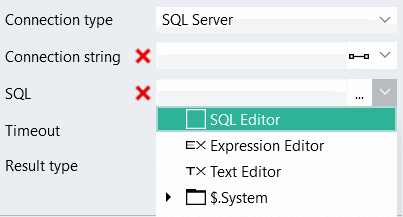
To access, click on the **SQL Editor** icon or dropdown list item:
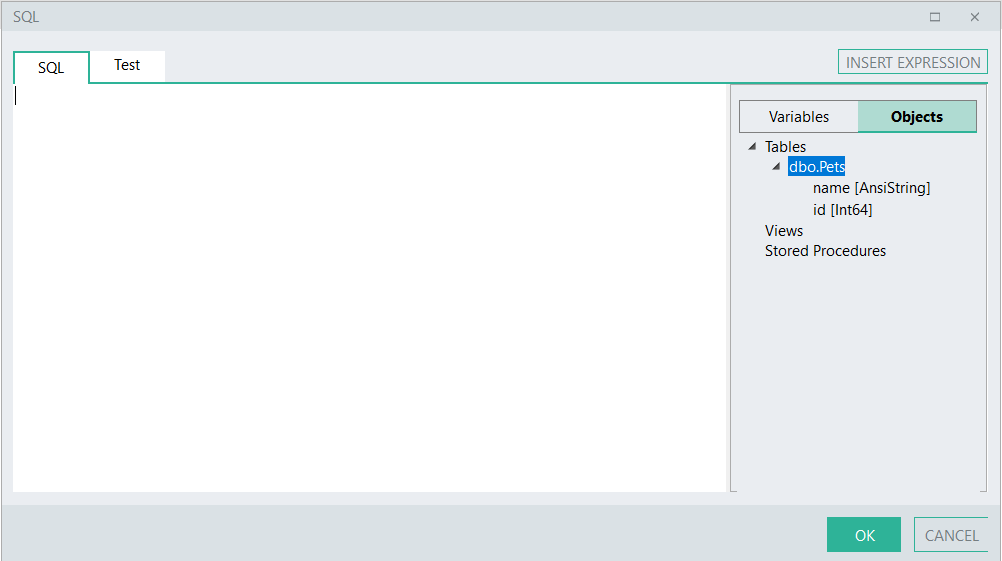
Click on the **Objects** tab to expand your database table(s) and fields:
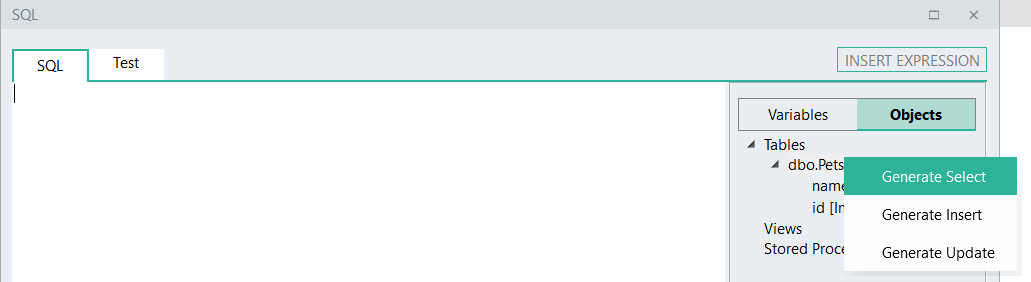
Right-click on the table name, then select the type of SQL query you want to create, e.g. *Generate Select*:
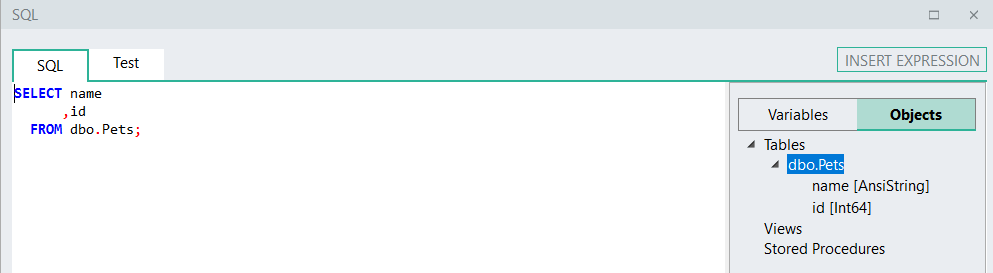
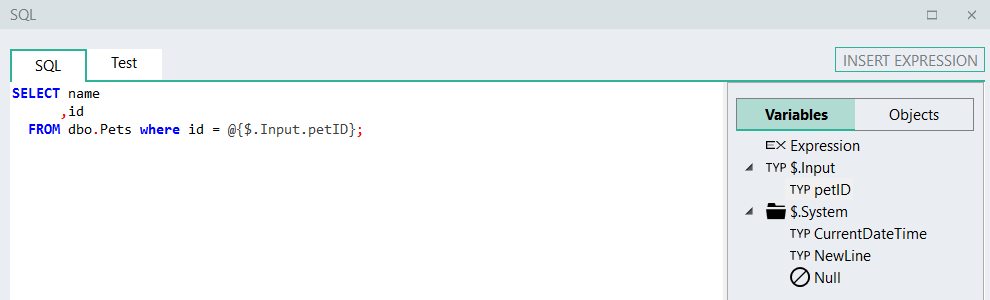
The main frame will now display your generated SQL query, which can be edited if required, by either typing out the statement or by including specific variables from the Variables list:
To include a variable in your SQL statement:
* place your cursor at the position in your statement where the variable must be added
* then click on the **Variables** tab (if not already selected)
* double-click on the required variable, which will then be added to your statement.
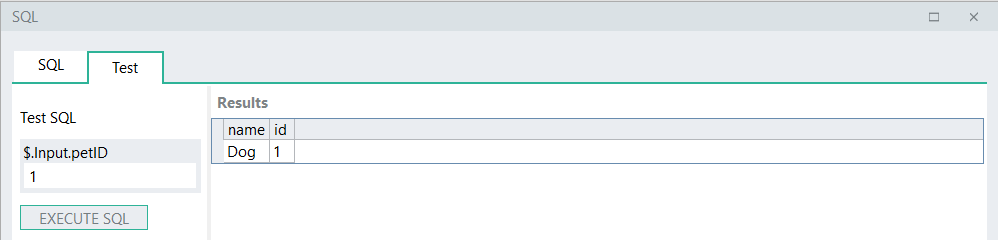
Click the **Test** tab to test the execution of your SQL query:
{% embed url="" %}
### Links
***
[Linx Community: SQL Query Builder](http://community.linx.software/t/sql-query-builder/392)
---
# Agent Instructions: Querying This Documentation
If you need additional information that is not directly available in this page, you can query the documentation dynamically by asking a question.
Perform an HTTP GET request on the current page URL with the `ask` query parameter:
```
GET https://docs.linx.software/reference/plugins/database/shared-properties/sql-editor.md?ask=
```
The question should be specific, self-contained, and written in natural language.
The response will contain a direct answer to the question and relevant excerpts and sources from the documentation.
Use this mechanism when the answer is not explicitly present in the current page, you need clarification or additional context, or you want to retrieve related documentation sections.